What is a Portal Page?
Portal pages allow you to consolidate manuals related to your work into a single page.
Related: Tell me about portal pages
https://help.teachme.jp/hc/en-us/articles/21838465421593
This article provides examples of how to create a portal page.
Create Page Flow and Key Points
Consider the means to resolve the issue
Start by clarifying the current situation and the desired outcome, then consider whether a portal page is the right solution to bridge the gap.
The main development purposes of the portal page feature are as follows.
- Make it easier for viewers to reach manuals
- Allow information outside of Teachme Biz that is necessary for work to be displayed together
Depending on the current situation and desired outcome, there may be other things to address first, or a different approach may be more suitable.
Examples where something else should be addressed first
- The viewing environment is not in place
→ It is effective to improve the viewing environment, such as increasing the number of devices. - The necessary manuals are not yet available
→ Create the missing manuals. - Teachme Biz has not been widely adopted
→ We recommend creating and promoting killer content.
Related: [Useful Resources] Examples of killer content to create during the early stages of Teachme Biz implementation
https://help.teachme.jp/hc/en-us/articles/9316280679449
Examples where a different approach is more suitable
- Viewers do not know which manual contains the information they need
→ Rewrite manual titles from the viewer's perspective - Folders and manuals that are not relevant to the user are displayed, making it hard to find what they need
→ Grant only the necessary permissions based on role or job scope
Related: Is there an efficient way to configure permissions when staff changes occur?
https://help.teachme.jp/hc/en-us/articles/900005508926
Clarify the intended use
If the page becomes a generic "page for everyone," users will need to search through the page and its manuals, making it harder to find what they need in the end.
We recommend clarifying the intended use and deciding on the structure before creating the page.
Example consideration for the logistics industry
| Who | - Warehouse line staff (the assigned line varies by day) |
| In what situation | - When unsure during work - Reviewing before taking on a line they haven't worked in a while |
| What information | - Attendance rules - General warehouse rules - Line-specific procedures - Packaging methods - Delivery methods - Roles by position |
| Using what device | - Individually assigned smartphones |
| How to access the page | - Access via the "Portal" menu in the mobile app - For error-prone or critical tasks, post the portal page name at the work site or on tools with a note saying "Required pre-task check" |
Example consideration for the retail industry
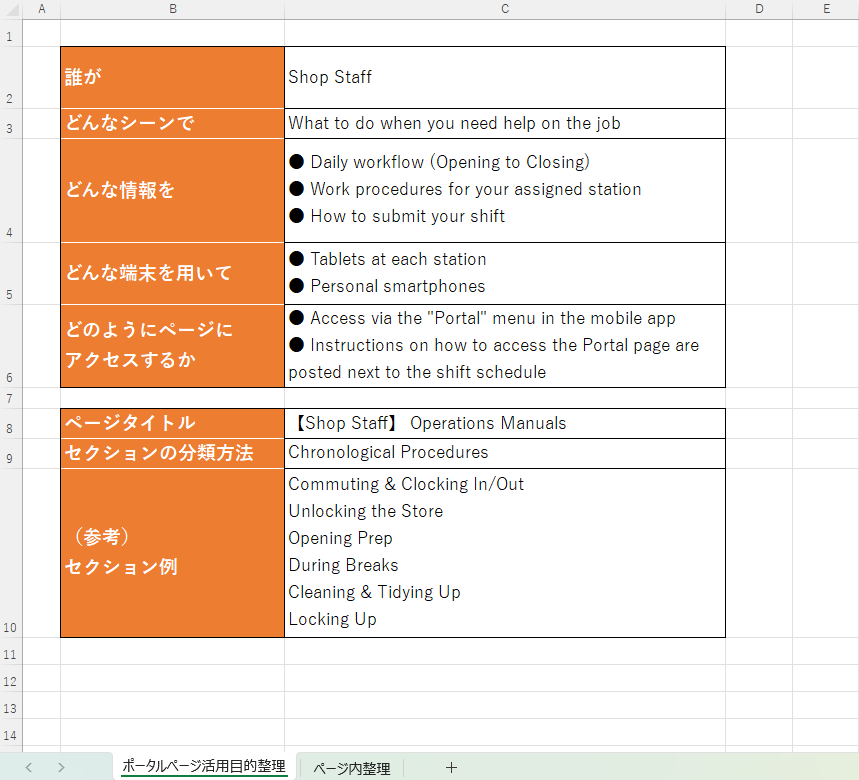
| Who | - Store staff |
| In what situation | - When they encounter difficulties during work |
| What information | - The flow from opening to closing - Work procedures for their own station - How to submit shift requests |
| Using what device | - Tablets at each station - Each staff member's personal smartphone |
| How to access the page | - Access via the "Portal" menu in the mobile app - Post an image showing how to access the portal page next to the shift schedule |
Example consideration for the food and beverage industry
| Who | - Kitchen staff |
| In what situation | - When unsure about a menu item or recipe - When a new menu item is added |
| What information | - Recipes for standard menu items - Recipes for seasonal menu items - Recipes for store-exclusive menu items |
| Using what device | - One tablet available in each kitchen |
| How to access the page | - Access via the "Portal" menu in the mobile app - Post an image showing how to access the portal page in the break room |
Consider the structure
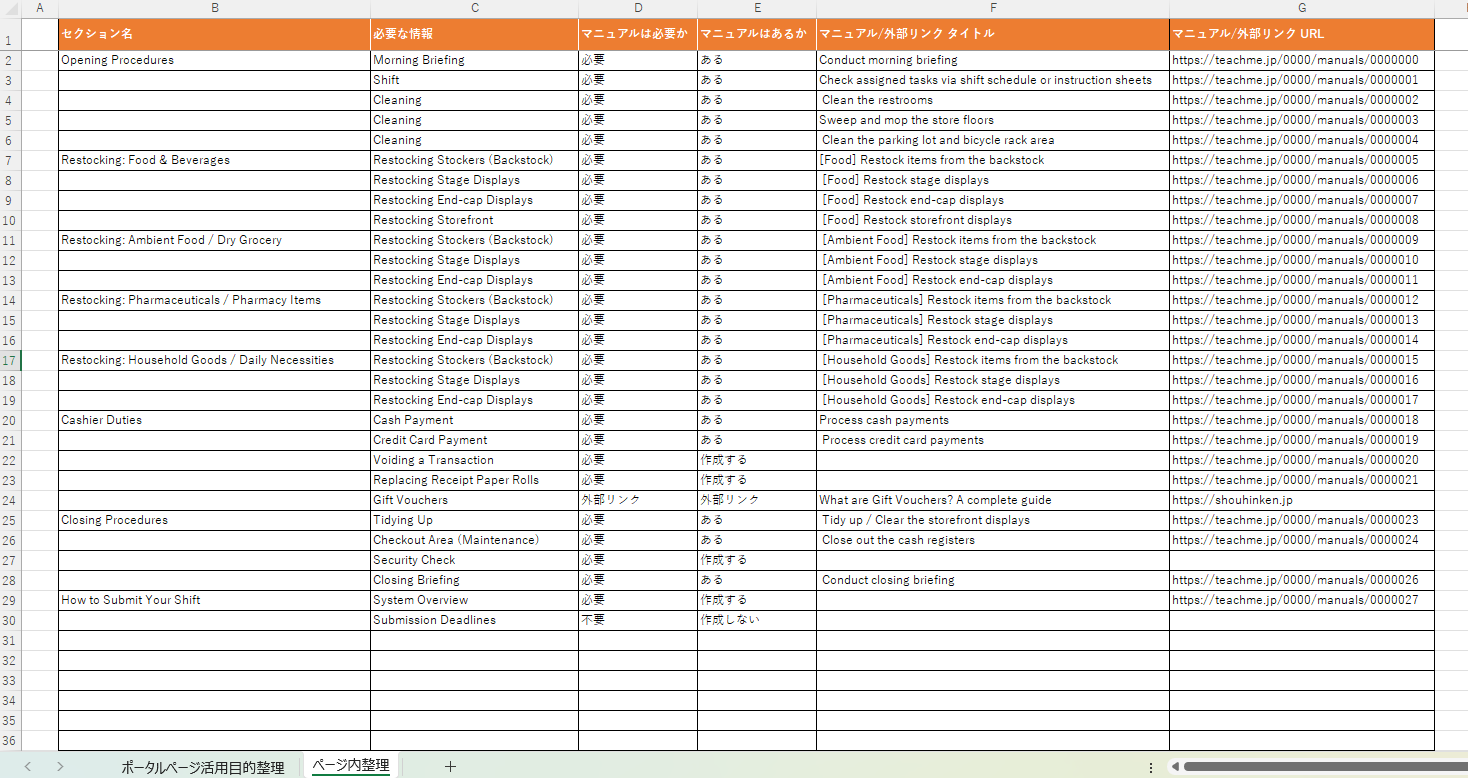
If you want to include a lot of information on the page, we recommend listing it out in Excel or a similar tool before creating it in Teachme Biz.
Recommended Steps
- Consider the unit of pages
- Consider the unit of Sections
- Write out an overview of the required information
- Map existing manuals to each page and Section
- Create any missing manuals
Please also make use of the "Organization Sheet" to help with your planning.
Organization Sheet (Clicking this will Download an Excel file to your device)
https://teachme-biz-lp.s3.ap-northeast-1.amazonaws.com/assets/files/cs/Teachme+Biz_portal_seirisheet.xlsx
Related: Export manual list (Web Browser)
https://teachme.jp/8/manuals/5619046
Create Page
Rather than aiming for a "perfect" initial release, it is more efficient to publish once a reasonably useful set of content is in place, and then continue to refine it together with your viewers.
Tips for Creation
■ Do not overcrowd a single page with too many Sections or content items
- Number of Sections per page: up to 10
- Number of content items per Section: up to 12
■ Check the viewing permissions for manuals
Verify that the users who are intended to view the content have joined the folder where the manuals you want to show them are saved.
Related: Add or remove users from folder (Web Browser)
https://teachme.jp/8/manuals/4929449
Setting up permissions using "Teams" makes it convenient to check and make changes.
Related: Manage user teams (Web Browser)
https://teachme.jp/8/manuals/4929282
■ Change the manual cover image to one that matches the business context
Before

After

Related: Replace/Delete Registered Images and Videos (Web Browser Version)
https://teachme.jp/8/manuals/8080589
■ Arrange pages in an order that is convenient for viewers
Manuals and Outside Links within a portal page are initially displayed in the order they were added, but they can be freely reordered by drag and drop.
Related: Create and edit Portal Pages (Web Browser)
https://teachme.jp/8/manuals/24198884#stepId-24184336
Announce
It is important to communicate specific information from leaders to staff through as in-person a setting as possible, such as morning meetings or regular meetings.
- When operations will Start
- How you would like it to be used
- Devices to be used
- Viewing pathways
- Conducting a demonstration
Key Points When Starting Operations
Clearly communicate viewing pathways to viewers
It defeats the purpose if the page you created to make content easier to find is unknown to viewers, or if it takes effort to locate.
Create an environment that makes it easy to access the portal page.
- When using a PC: Instruct users to bookmark the page in their Browser
※ We plan to add an Export QR code feature to portal pages in the future, enabling users to scan them with mobile devices.
Establish and communicate a reporting flow for missing content or permissions
If there are gaps in content or permissions, the page you worked hard to create will not be able to reach its full potential.
It is effective to prepare a manual for the reporting flow to follow when "required content is not available" or "content is not displaying," and to place it at the top of the page.

Decide on a review schedule
Just like manuals, pages become outdated over time.
To prevent the situation where people stop using them because the content no longer reflects reality, we recommend deciding in advance on the timing and process for reviews.
Survey your viewers
It is difficult to create a perfect page for viewers from the very beginning.
Gather feedback from the field through surveys and similar methods, and continue to update and develop the page into one that is truly useful on the ground.
We recommend doing this not only at the time of the initial release, but also regularly at each review interval.
Closing
We offer portal page construction support services as well as consulting services tailored to your company's situation.
If you would like to schedule an online meeting, please feel free to reach out to your representative at our company or through the Contact form.
Related Links
Create and edit Portal Pages (Web Browser)
https://teachme.jp/8/manuals/24198884
Track user viewing activity, measure effectiveness, and drive improvements
https://help.teachme.jp/hc/en-us/articles/900005732566
For inquiries regarding this matter (Japan, Thailand, Vietnam)
■Studist Japan
Use the Contact Form for inquiries regarding this matter.
Email: support@teachme.jp
■Studist Thailand
Email: support-global@teachme.jp
LINE Official Account: @studist.th
Scan this QR Code
Or add a friend via LINE ID: @studist.th (Please make sure to include the "@" symbol)
■Studist Vietnam
Please contact us at support-vn@teachme.jp.