You can combine 2 to 4 images into a single image and add it to a cover or step.
Use this feature when you want to show OK/NG comparisons, before/after comparisons, or an overview and a close-up view within a single step.
Supported Plans
All plans are supported.
Permissions & App
Permission: Users who can edit manuals
App: Web browser version
※Not available on the mobile app
How to Use
Collage multiple images (Web Browser)
https://teachme.jp/8/manuals/16567711/
Detailed Specifications & Notes
Example Uses of the Image Combining Feature
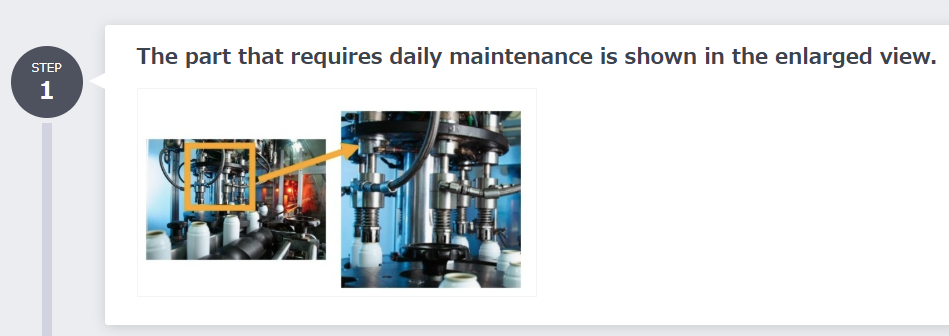
Show an overview and a close-up view → Combine 2 images (horizontal)
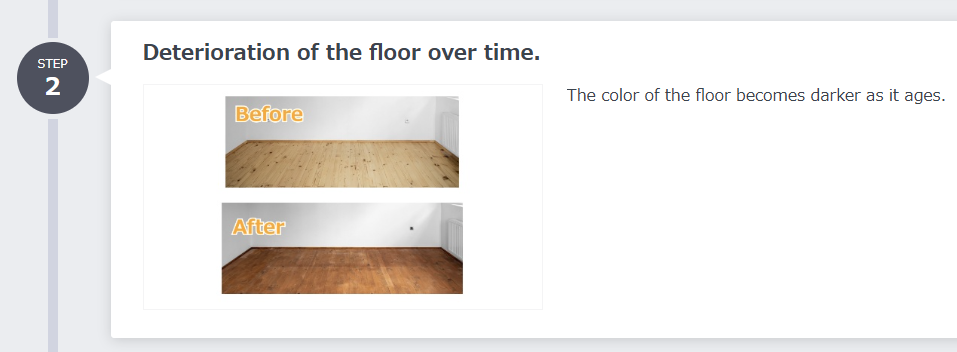
Show before and after → Combine 2 images (vertical)
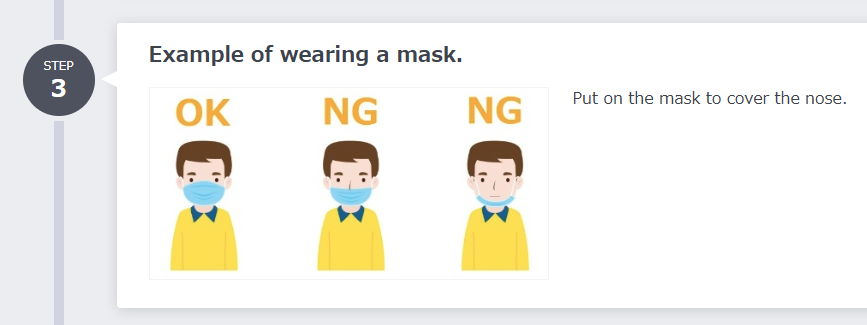
Show OK and NG examples → Combine 3 images
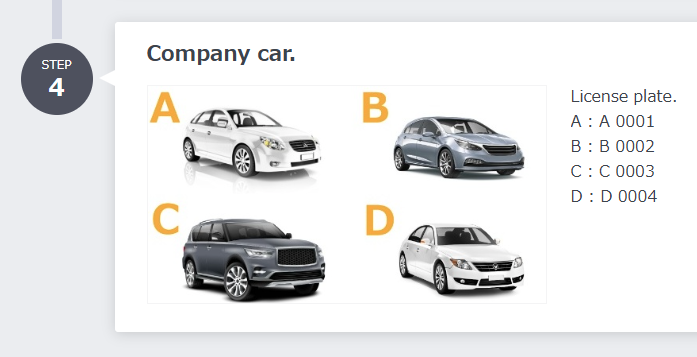
Show multiple types → Combine 4 images
Notes
Once combined images are applied to a manual, they are registered as a single image.
Therefore, the following applies after combining images.
Operations Not Available After Combining Images
- Changing the combination layout
- Swapping or replacing individual combined images
- Modifying image adjustments (trimming, rotation) made to individual combined images
Operations Available After Combining Images
- Performing standard image editing on the combined image
- Replacing the combined image with another single image
- Deleting the combined image and combining images again