Teachme Biz has a feature that allows you to specify the communication environment and devices that can access it.
If the following messages are displayed, access is being restricted by that feature.
Messages Displayed and How to Resolve Them
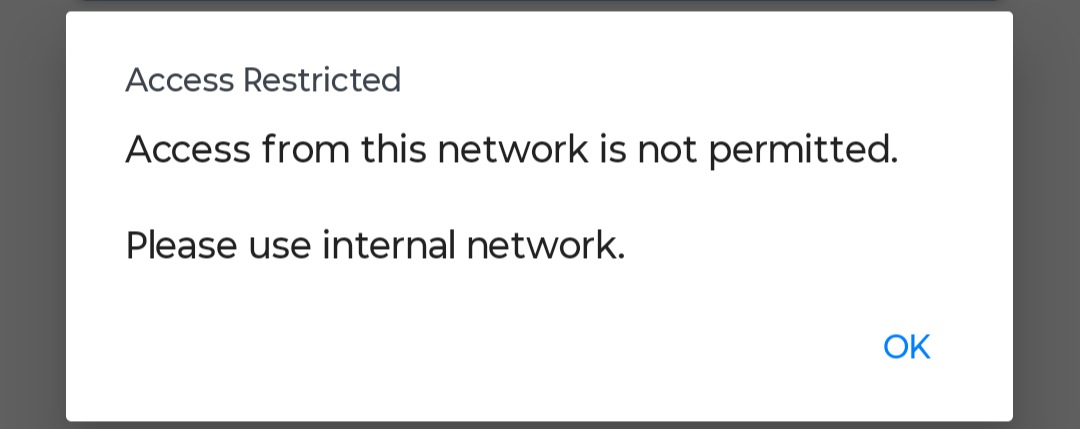
"Access restricted by IP address..." is displayed

Cause
- Group IP Restrictions are in place, and you are accessing from a network that has not been permitted.
Resolution
-
Connect to a permitted network
Please check with your company's Group administrator and Sub-administrator to find out which networks are permitted.
▼About Access Restrictions by Current IP address
https://help.teachme.jp/hc/en-us/articles/900005508766
-
Ask an Administrator to change the IP Restrictions settings
Please consult your company's Group administrator and Sub-administrator to have your current network added to the permitted list.
▼Restricting and removing access to a Group by IP address
https://teachme.jp/8/manuals/9117232
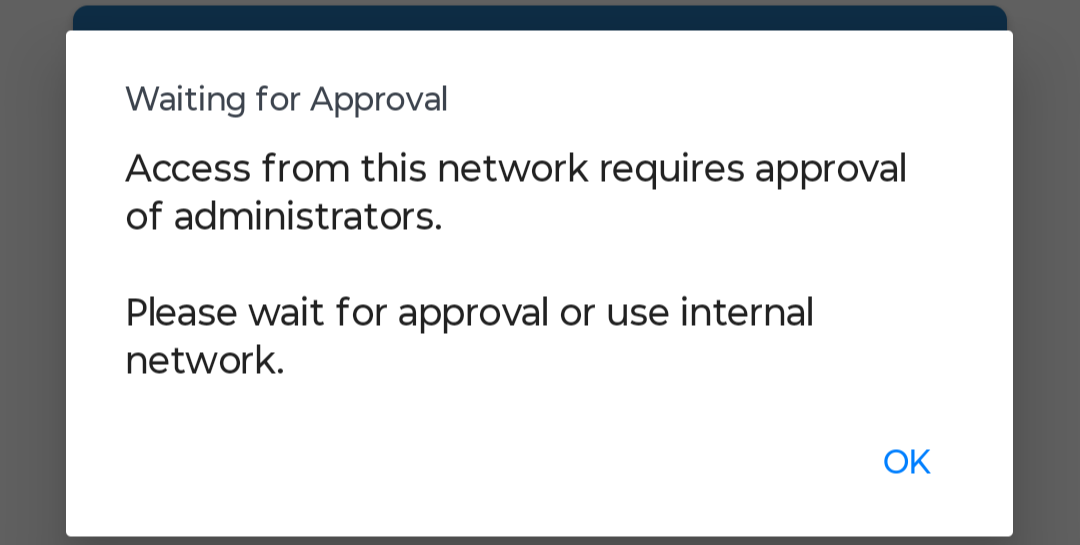
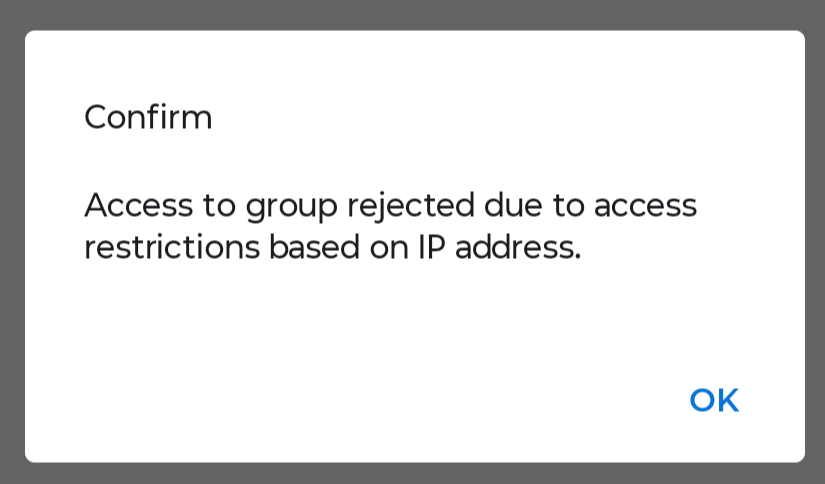
A message saying "Pending Access Approval" or "Access Restricted" is displayed
Cause
- Group IP Restrictions are in place, and you are accessing from a network that has not been permitted.
- The Access Approval Management feature is enabled, and you are accessing from a mobile device that has not been permitted.
- With QR Code Login, a QR code was scanned from a mobile app that has not been approved in Access Approval Management.
Resolution
-
Connect to a permitted network
Please check with your company's Group administrator and Sub-administrator to find out which networks are permitted.
If you are connecting from a permitted network, access is possible even from an unapproved device.
-
Ask an Administrator to approve and permit the device
Please consult your company's Group administrator and Sub-administrator to have access from your mobile app approved.
▼About Access Approval Management
https://help.teachme.jp/hc/en-us/articles/900005509126
▼Submit a request to enable access to the app via external networks(Mobile App)
https://teachme.jp/8/manuals/38342367
▼Manually register, edit, and delete Specific code. (Web Browser)
https://teachme.jp/8/manuals/9124481 -
[For QR Code Login] Scan the QR code again after the Administrator has approved
When you scanned the QR code, an approval request was sent to the Administrator.
Once the Administrator has approved, please scan the QR code again.
▼Login with QR Code (Mobile App)
https://teachme.jp/8/manuals/39394811