Here is a summary of useful operations in the editing screen.
Please note that this article covers only some of the features available.
For other features, please also check "Search for features".
Step
Reorder
You can reorder Steps by dragging and dropping them in the Step list on the left side of the screen.
Related: Change Step Order (Web Browser)
https://teachme.jp/8/manuals/42394655
Copy
Select a Step in the Step list on the left side of the screen, then choose "Duplicate" from the "︙" menu.
Related: Copy manual step (Web Browser)
https://teachme.jp/8/manuals/13782173
Delete
You can delete a Step using the "Delete" button at the top right of the Step, or from the Step list on the left side of the screen.
Related: Delete manual step (Web Browser)
https://teachme.jp/8/manuals/14238888
Copy to another Manual
You can use the Clipboard on the right side of the screen to copy a cover page or Steps to another Manual.

Click on an item already added to the Clipboard, then click "Delete" that appears at the top right of the Clipboard to remove unnecessary Clipboard items.
Related:
Using the Clipboard feature (Web Browser version Operation Manual)
https://teachme.jp/8/manuals/11054649
Making the most of the Clipboard (Tips & Know-how)
https://help.teachme.jp/hc/en-us/articles/900006675343
Perform bulk operations on multiple Steps
In the Step list or Clipboard, you can select multiple Steps by holding down the following keyboard keys while clicking.
- Ctrl key: All Steps clicked while holding down the key
- Shift key: All Steps between the first Step clicked and the next Step clicked
* To deselect, hold down the Ctrl key and click the Step you want to deselect, or click anywhere outside the Step list.
Create multiple Steps at once from multiple images
If you already have images, you can create multiple Steps at once.
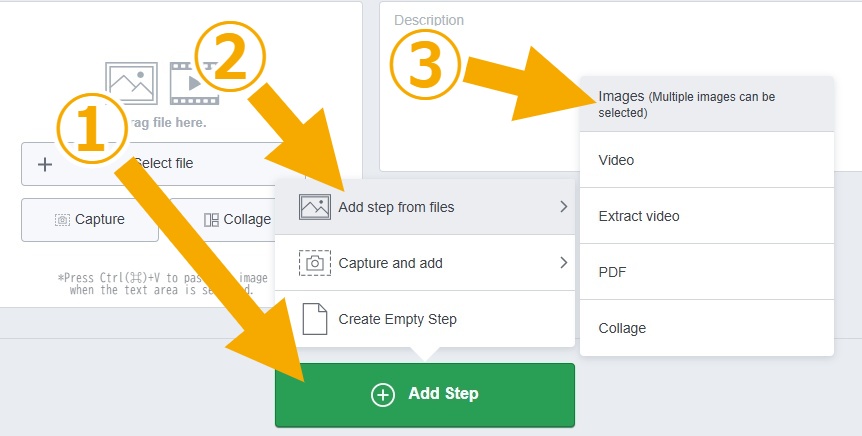
Related: Create multiple steps with images at once (Web Browser)
https://teachme.jp/8/manuals/4929561
Create multiple Steps at once from a video
If you have a video of the overall workflow, you can extract images or video clips from it to create multiple Steps at once.
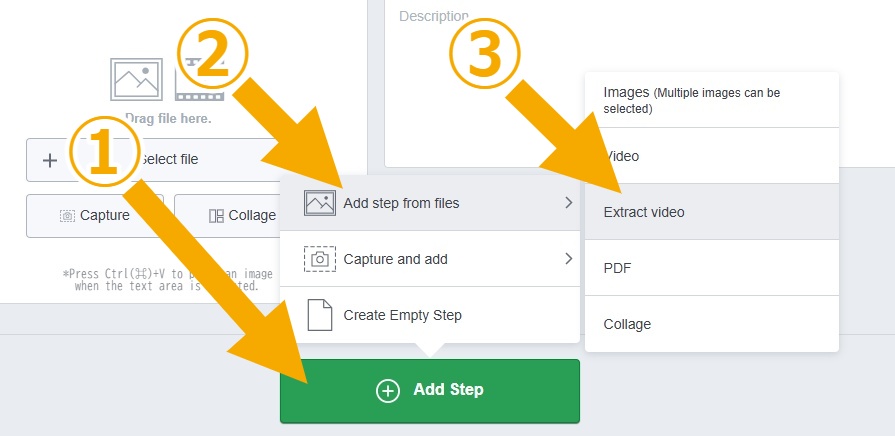
Related: Extract image or video clip from video (Web Browser)
https://teachme.jp/8/manuals/14366584
Images
Paste with Ctrl+V
Copy an image file, then click on the Title or description area and paste the image using Ctrl+V.
Related: Paste image into step (Web Browser)
https://teachme.jp/8/manuals/6984816
Paste multiple images into a single Step
You can paste 2 to 4 images into a single Step using "Collage".
This is useful for showing comparisons such as correct/incorrect or before/after, as well as overall views and close-up views.
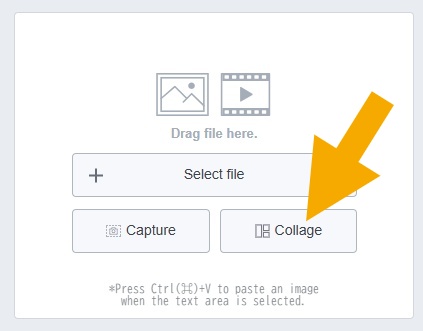
Related: Collage multiple images (Web Browser)
https://teachme.jp/8/manuals/16567711
Use general-purpose illustration materials (free of charge)
We provide free general-purpose illustration materials for use when creating Manuals.
Any customer with a Teachme Biz subscription can use them.

Related: How to use general-purpose illustration materials (free of charge)
https://help.teachme.jp/hc/ja/articles/27782478268057
Edit image / Edit video
Use shortcut keys
Shortcut keys available in the image/video editing screen
https://help.teachme.jp/hc/en-us/articles/12095112400153
Use symbols in text Marking
Some symbols such as "↻", "⇔", and "⚠" can be used in text Marking.
If the shape Marking you need is not available, consider using symbols instead.
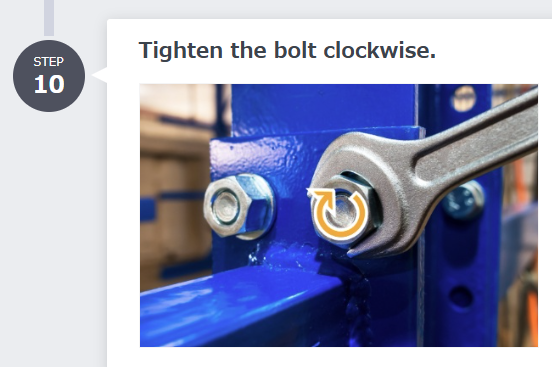
Related:
Add markings and edits to images, such as arrows (Web browser)
https://teachme.jp/8/manuals/4929404
Add captions, symbols, or frames to video (Web Browser)
https://teachme.jp/8/manuals/14366698
Description
Emphasize important parts
Select the text you have entered and click "Bold" to emphasize it.
You can also use Ctrl+B to apply "Bold".
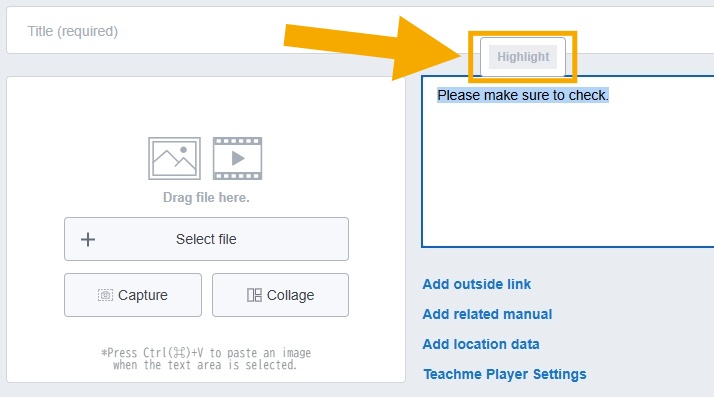
Related: Highlight the description (Web Browser)
https://teachme.jp/8/manuals/18167884
Links
Reorder
Click and drag "≡" to reorder links.
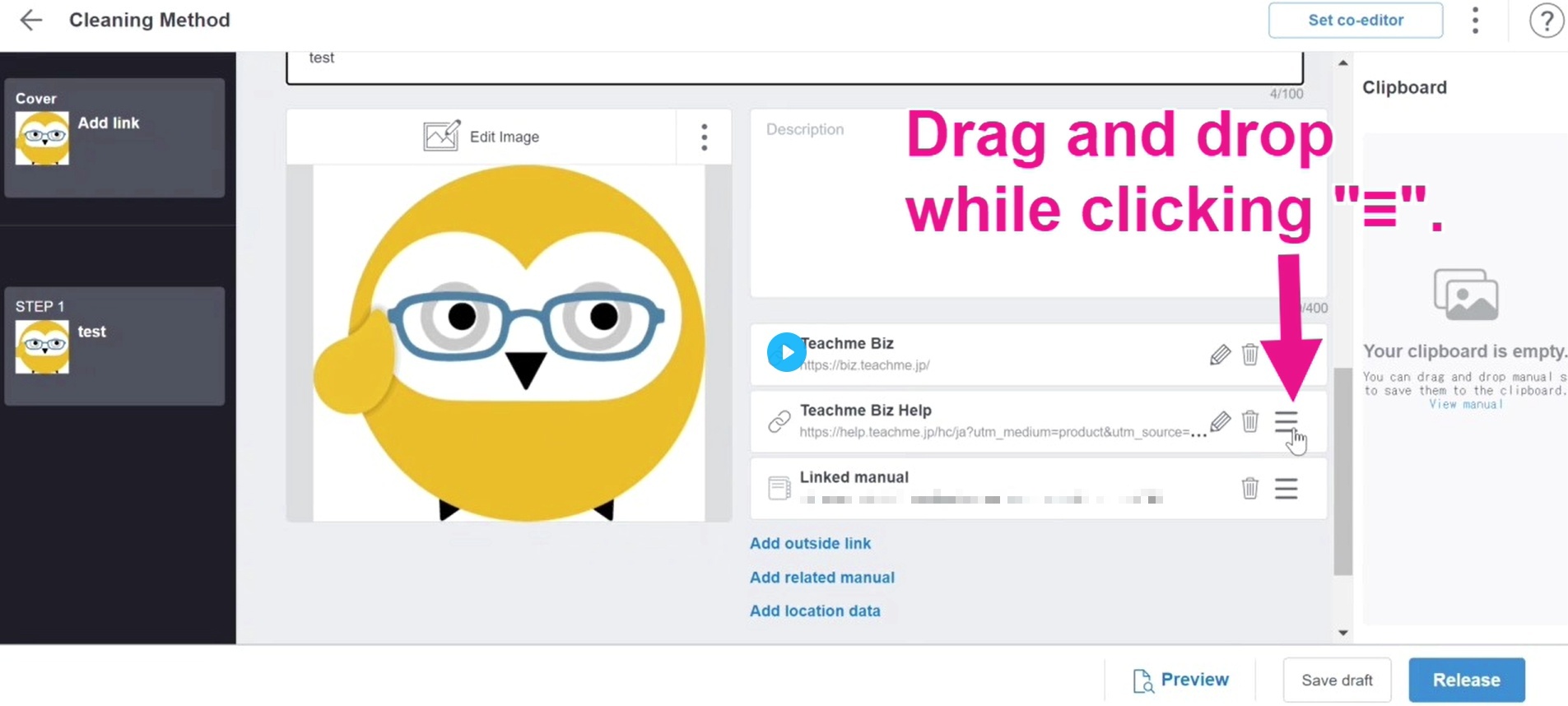
Related: Add link to manual (Web Browser)
https://teachme.jp/8/manuals/8733762
Insert a link in the Manual "Description" that jumps to a specific Step
You can insert a link in the Manual's "Description" that specifies a Step number to jump to.
This is useful when you want to direct viewers to a specific Step within the same Manual, such as when a procedure branches.
* If Step numbers change due to Manual edits, the link will not update automatically — clicking it will jump to the Step that holds the specified number at that time.
Related: Put a link to the steps in the description (Web Browser)
https://teachme.jp/8/manuals/24160977
Get a link that always jumps to the same Step even after editing
Right-click a Step number on the Manual viewing screen to get a URL that jumps to a specific Step.
When you want to guide someone to a specific Step in a different Manual, it is convenient to register it in "Add outside link".
※ URLs ending in "step" that were provided in the past may jump to a different destination after the Manual is edited.
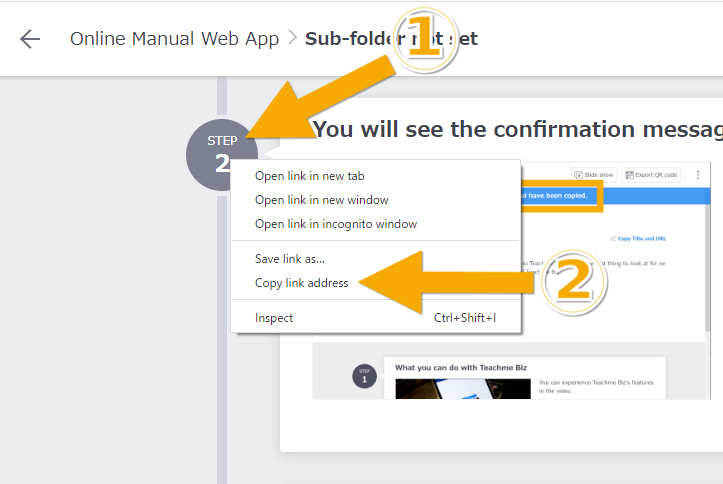
Related:Copy URL to jump to a specific step of the manual (Web Browser)
https://teachme.jp/8/manuals/8557937
Overall
Discard unpublished changes
You can undo all edits made after "Release" or "Update".
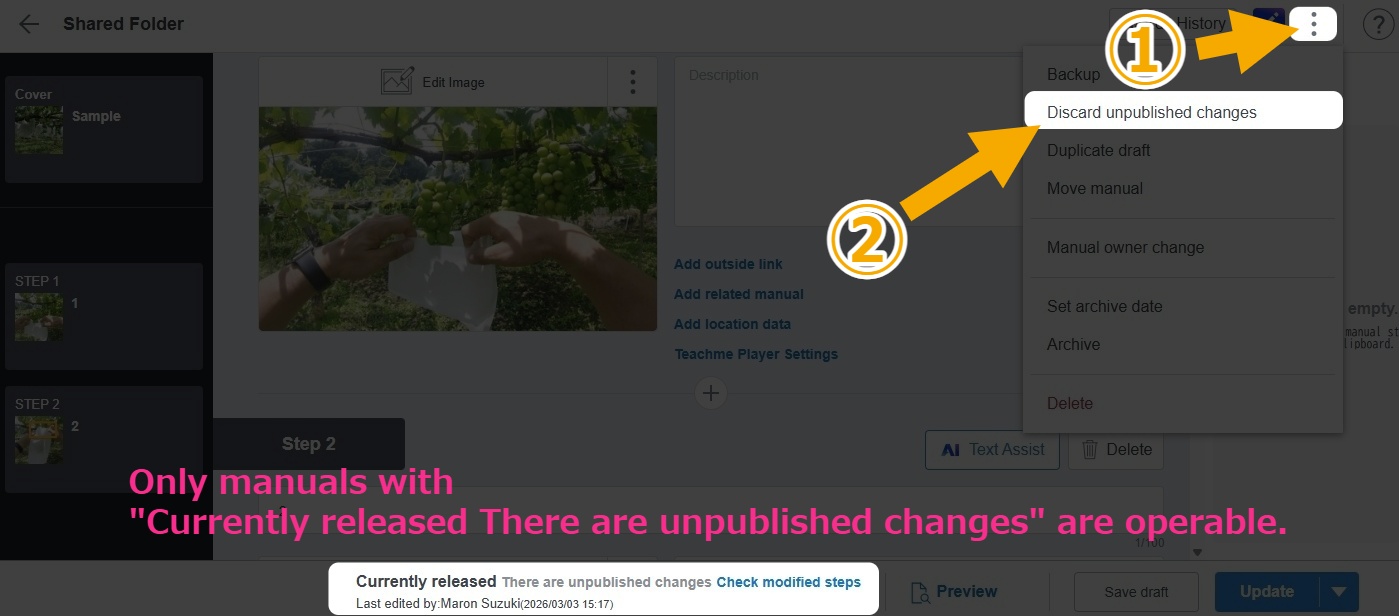
Related:Discard unpublished changes to the Manuals (Web Browser)
https://teachme.jp/8/manuals/33088474
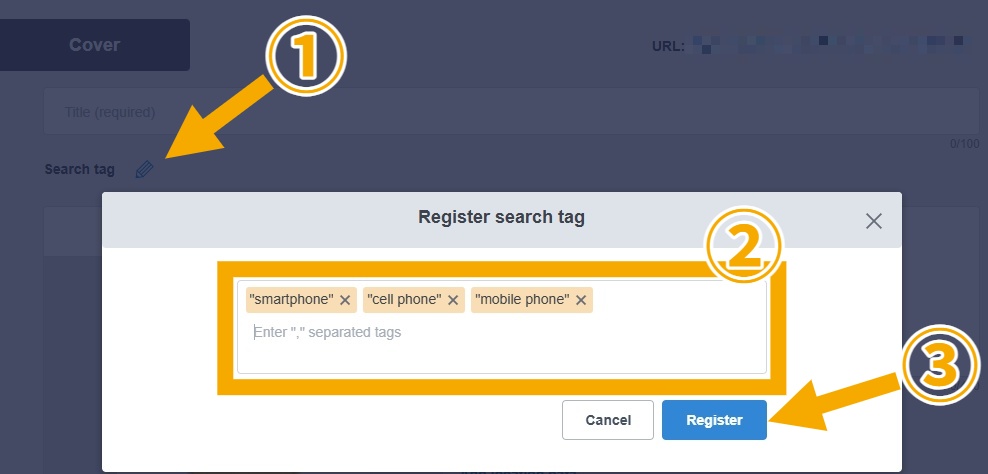
Add search keywords
Adding "Search tags" allows users to search with keywords not included in the Title or description.
This is useful when there are informal names not written in the Manual, or to handle variations in how people spell a word when searching.
Example: Add "Smartphone", "Smart Phone", "Mobile Phone", and "Cell Phone" to the "How to use a smartphone" Manual
Related:
Set search tags (Web browser)
https://teachme.jp/8/manuals/34274200
What are the benefits of setting "Search tags"?
https://help.teachme.jp/hc/en-us/articles/900005507786