
Teachme Biz has a "clipboard feature" that temporarily stores manual steps. In this article, we will introduce convenient ways to use this "clipboard feature" along with some practical examples.
How to Use the "Clipboard Feature" in Teachme Biz
We will specifically introduce how to make use of the clipboard feature along with practical examples.
Register Frequently Used Images in Advance
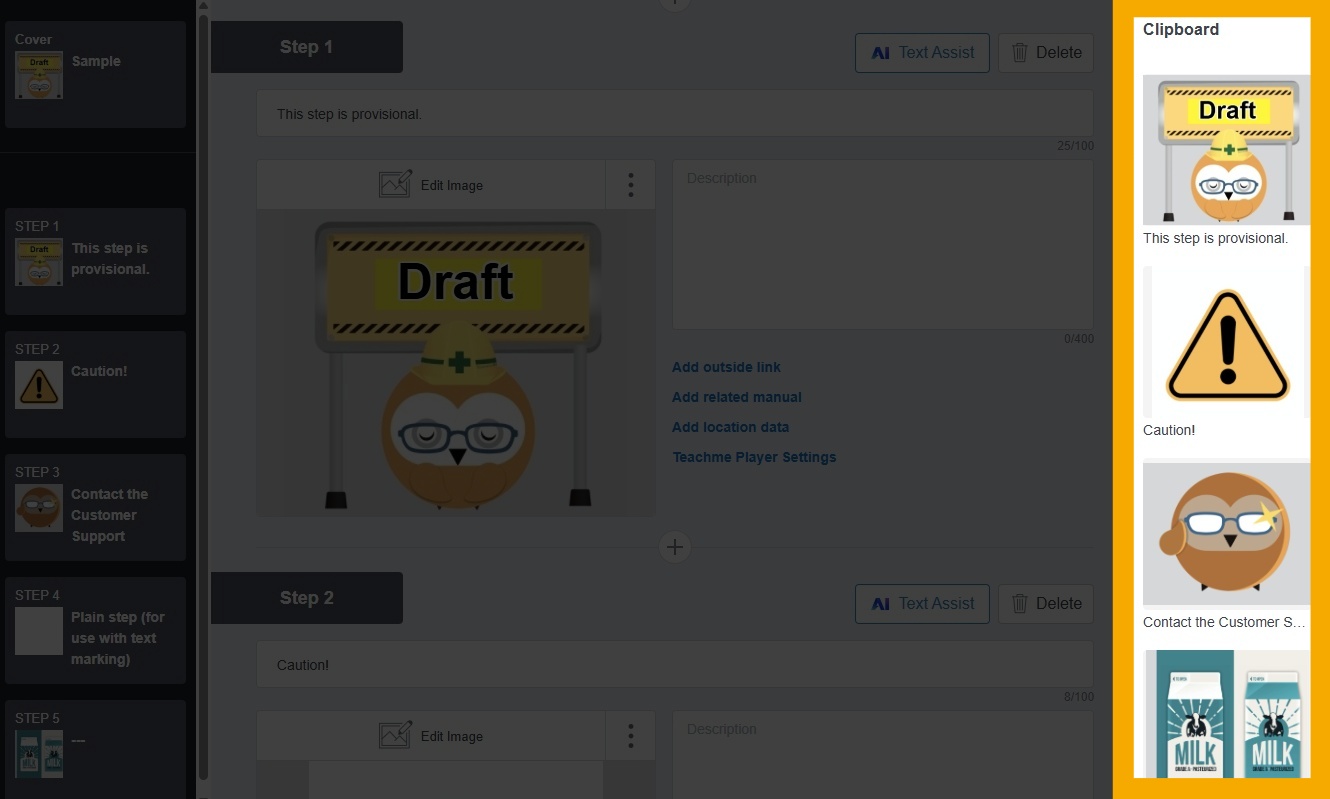
The clipboard allows you to temporarily store steps and reuse images, titles, and descriptions directly in other manuals.
Saving images you frequently use is convenient when you want to quickly create a manual.
Here are some examples of steps that are useful to save in the clipboard.
1. Under Construction: Use when a manual or step is provisional
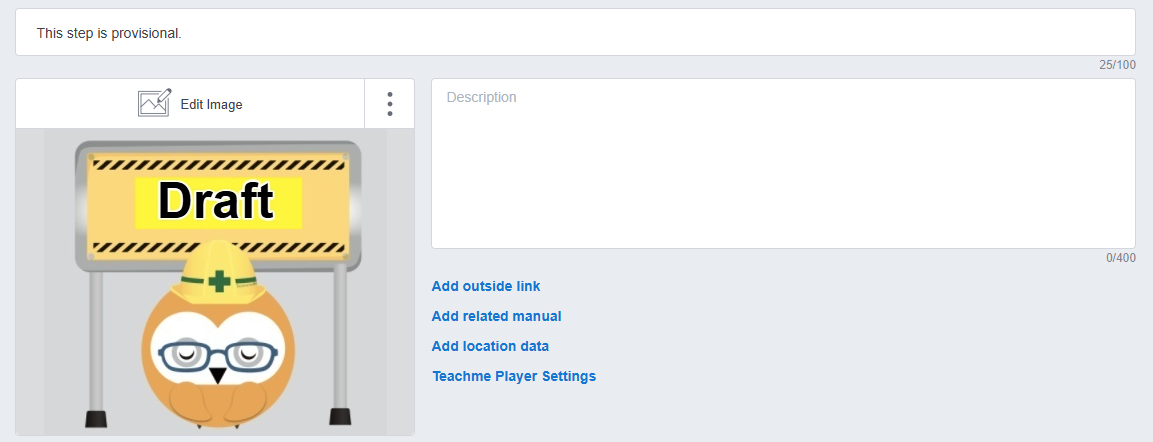
This can be used when images for a manual or step have not yet been taken, or when part of the workflow procedure is still provisional.
2. Caution: Use when you want to call attention before moving on to the next step
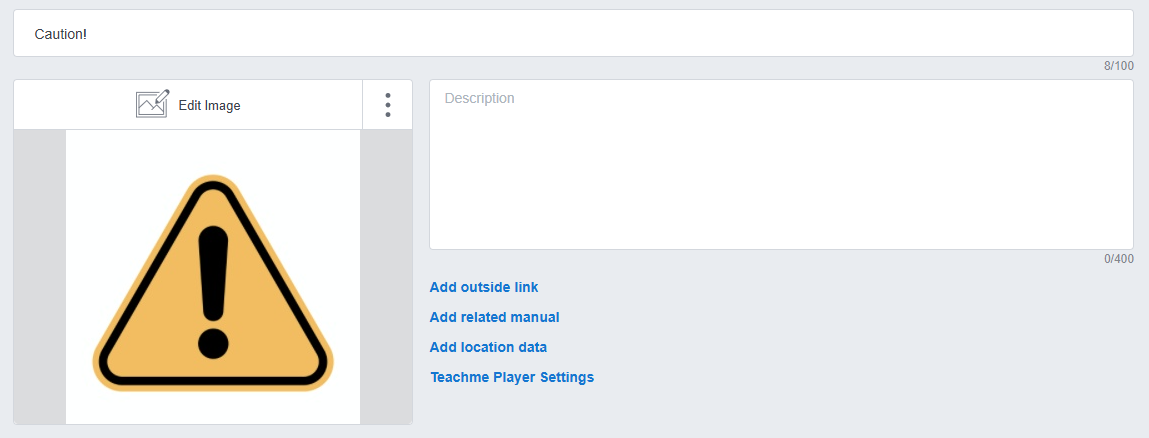
This can be used when there are points to be careful about in relation to the preceding or following steps.
3. Use as a contact reference for questions about the manual
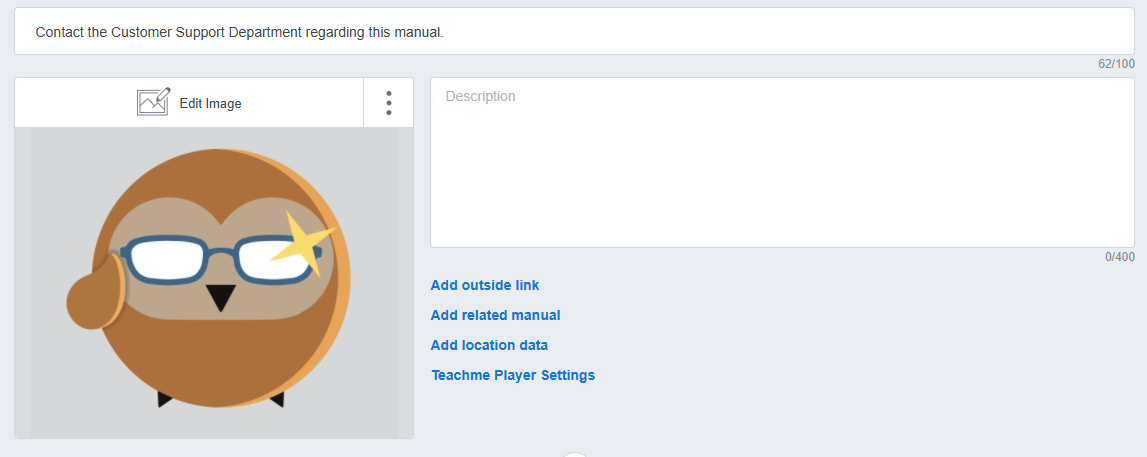
You can create a template for contact information where users can inquire about any unclear points regarding the content described in the manual.
4. Use as a plain image step for adding text
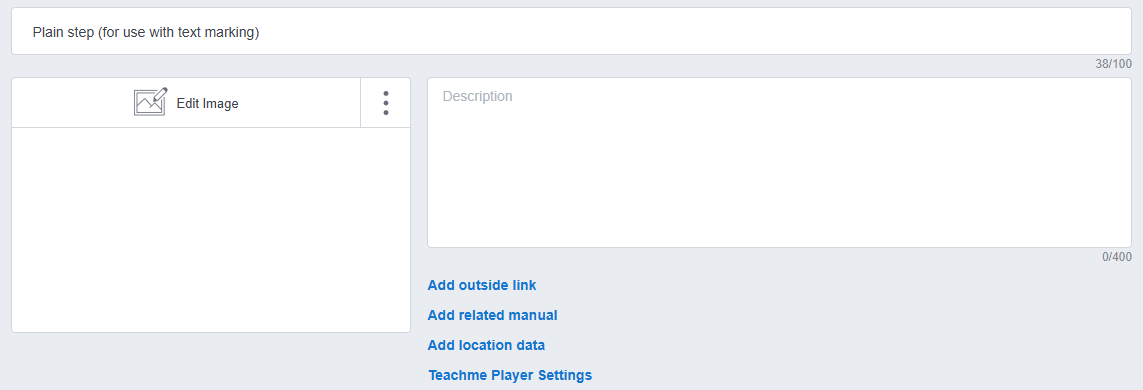
By intentionally registering a plain step, you can add text only when there is no step image available.
By registering images, titles, and text in the clipboard this way, you can quickly create steps without having to search for images when you want to build a manual fast.
Replacing Steps That Exist Across Multiple Manuals
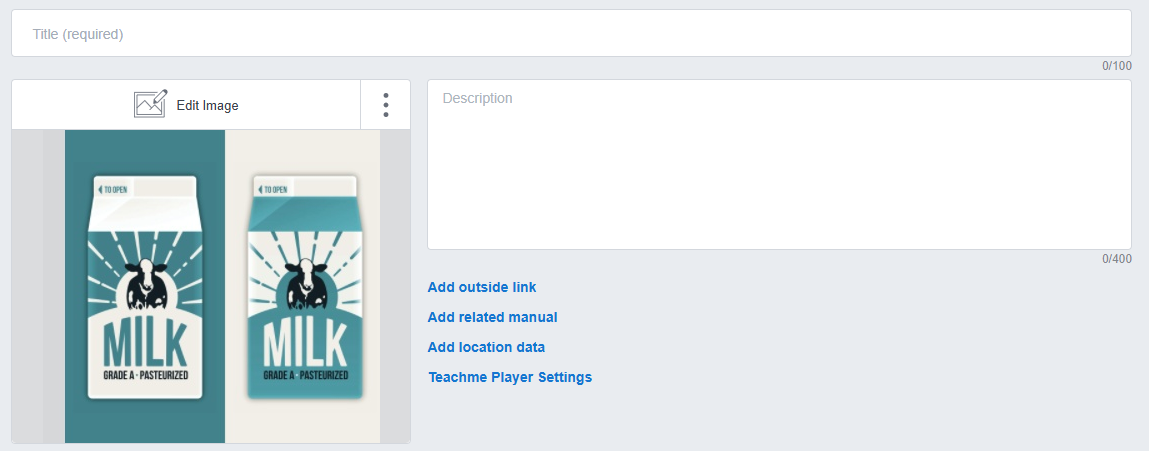
It can also be used when replacing steps with similar content that exist across multiple manuals.
For example, in retail, this could apply when a private brand product's packaging design has changed; in the food and beverage industry, it could apply when dishes have changed or plating methods have been updated.
Improve Work Efficiency and Productivity by Using the Clipboard Feature
Never Create the Same Step Twice
Once you learn the basic operations of Teachme Biz — mainly registering images and entering text — you can create manuals easily and quickly.
By making use of the clipboard, you can create manuals even faster. Teachme Biz also has many other features hidden away to help you create manuals more quickly (well, not exactly hidden, but...).
How to Use the "Clipboard Feature" in Teachme Biz
Detailed instructions on how to use the "clipboard feature" in each Teachme Biz app are provided in the online manuals below.
Summary
What did you think? By making good use of the "clipboard feature" in Teachme Biz, you can speed up manual creation and updates, making it a first step toward improved productivity. We encourage you to give it a try.