Symptom
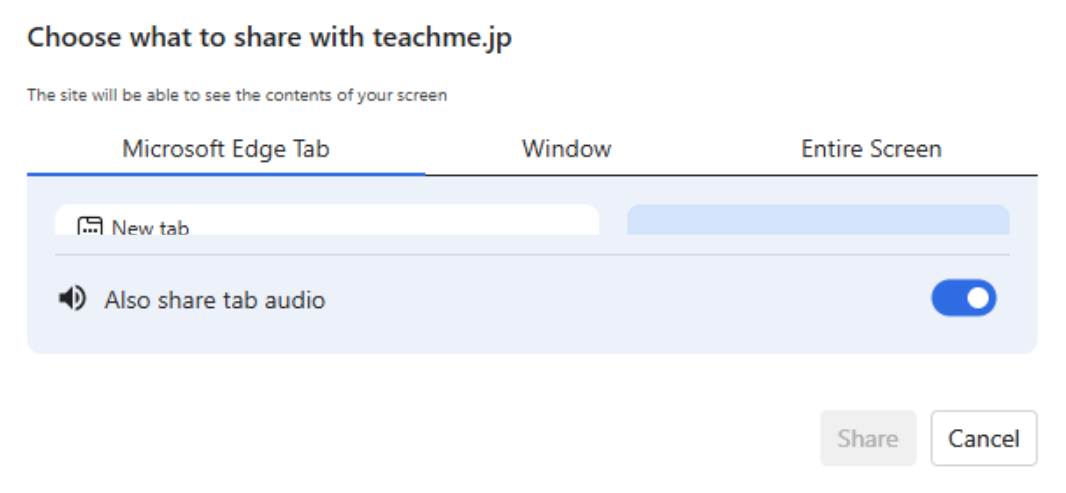
When taking a screen capture using Microsoft Edge, the entire capture area selection window may only be displayed at approximately half its size.
Conditions for Occurrence
No clear conditions for occurrence have been identified, but we have confirmed that this occurs in the following cases.
- When using Microsoft Edge
Workaround
Please try one of the following methods to see if the issue is resolved.
[Method 1] Select a different tab from the capture area selection window
- From the capture area selection window, click the "Full Screen" tab.
- Then, return to the "Screen Capture Area Selection" screen.
- Check whether it is displayed correctly.
[Method 2] Update the Edge browser
- With Microsoft Edge open, press "Alt + F" on your keyboard, then click "Help and feedback" → "About Microsoft Edge" in order.
- If an update is found, it will be applied automatically.
- Once complete, restart the browser.
[Method 3] Allow microphone access
- Click "Capture and Add" and then click "Allow" displayed in the upper left.
※ If you accidentally clicked "Block," press "Alt + F" on your keyboard and click "Settings."
Then click "≡" in the upper left menu → "Cookies and site permissions" → "Microphone" in order, and delete the Teachme Biz URL listed under the "Block" section. - Restart the browser.
If the issue is not resolved after trying the above
We apologize for the inconvenience. Please contact our support desk at support@teachme.jp.
Related: Inquiry Guidelines
https://help.teachme.jp/hc/en-us/articles/4408344482201