Here is a summary of useful operations in the editing screen.
Please note that only some features are introduced in this article.
For other features, please also check "Explore Features".
Steps
Reorder
You can reorder steps by dragging and dropping them in the step list on the left side of the screen.
Related: Change Step Order (Web Browser Version)
https://teachme.jp/8/manuals/42394655/
Copy
Select a step in the step list on the left side of the screen, then use the "︙" menu to "Duplicate" it.
Related: Copy manual step (Web Browser)
https://teachme.jp/8/manuals/13782173
Delete
You can delete a step using the "Delete" button at the top right of the step, or from the step list on the left side of the screen.
Related: Delete manual step (Web Browser)
https://teachme.jp/8/manuals/14238888
Copy to Another Manual
You can use the clipboard on the right side of the screen to copy a cover page or steps to another manual.
Click on an item already added to the clipboard, then click "Delete" displayed at the top right of the clipboard to remove unwanted clipboard items.
Related:
Using the Clipboard Feature (Web Browser Version Operation Manual)
https://teachme.jp/8/manuals/11054649
Making the Most of the Clipboard (Tips & Know-How)
https://help.teachme.jp/hc/en-us/articles/900006675343
Perform Bulk Operations on Multiple Steps
In the step list or clipboard, you can select multiple steps by holding down the following keyboard keys while clicking.
- Ctrl key: All steps clicked while holding the key
- Shift key: All steps between the first clicked step and the next clicked step
- To deselect, hold the Ctrl key and click the step you want to deselect, or click anywhere outside the step list.
Create Multiple Steps at Once from Multiple Images
If you already have images, you can create multiple steps at once.
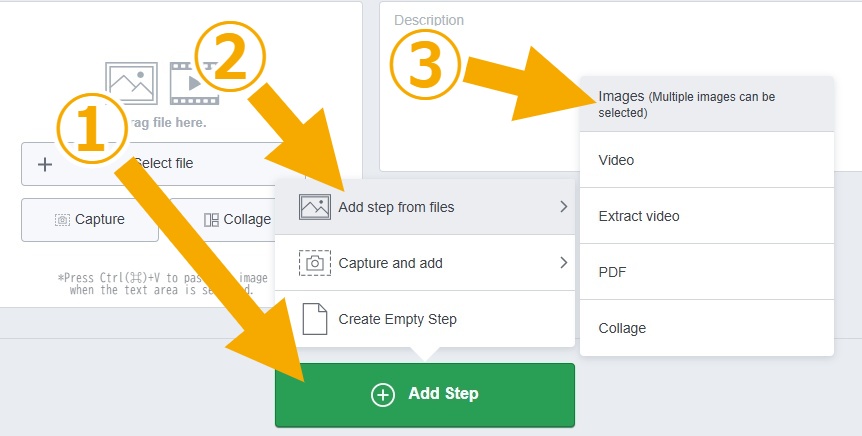
Related: Create multiple steps with images at once (Web Browser)
https://teachme.jp/8/manuals/4929561
Create Multiple Steps at Once from a Video
If you have a video of the entire workflow, you can extract images or video clips to create multiple steps at once.
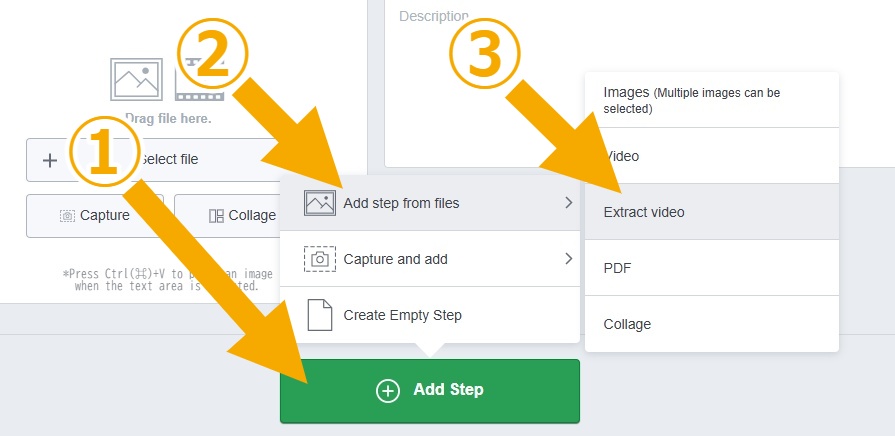
Related: Extract image or video clip from video (Web Browser)
https://teachme.jp/8/manuals/14366584
Images
Paste with Ctrl+V
Copy an image file, click on the title or description area, and paste the image using Ctrl+V.
Related: Paste image into step (Web Browser)
https://teachme.jp/8/manuals/6984816
Paste Multiple Images into a Single Step
You can paste 2 to 4 images into a single step using "Image Merge."
This is useful for showing correct vs. incorrect comparisons, before-and-after comparisons, or an overview alongside a close-up view.
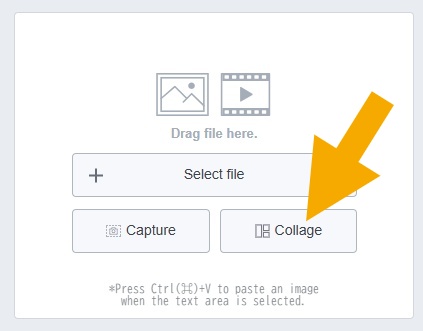
Related: Collage multiple images (Web Browser)
https://teachme.jp/8/manuals/16567711
Use General-Purpose Illustration Assets (Free)
We provide free general-purpose illustration assets for use when creating manuals.
Any customer with a Teachme Biz subscription can use them.
Related: How to Use General-Purpose Illustration Assets (Free)
https://help.teachme.jp/hc/en-us/articles/27782478268057
Image Editing / Video Editing
Use Keyboard Shortcuts
Keyboard shortcuts available in the image and video editing screens
https://help.teachme.jp/hc/en-us/articles/12095112400153
Use Symbols in Text Markings
Some symbols such as "↻," "⇔," and "⚠" can be used in text markings.
If the shape marking you need is not available, consider using symbols instead.
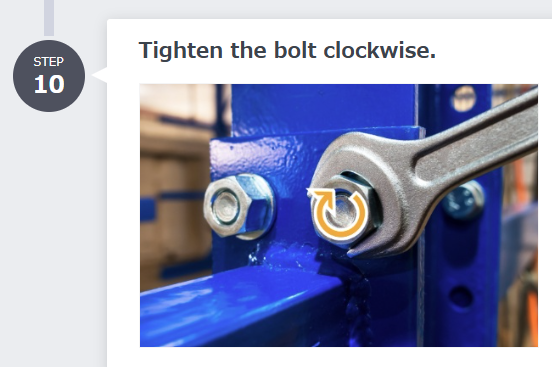
Related:
Add markings and edits to images, such as arrows.
https://teachme.jp/8/manuals/4929404
Add captions, symbols, or frames to video (Web Browser)
https://teachme.jp/8/manuals/14366698
Description
Emphasize Important Parts
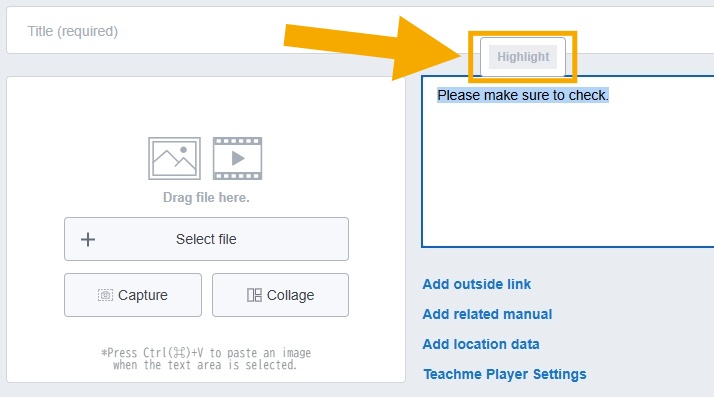
Select the text you have entered and click "Bold" to emphasize it.
You can also use Ctrl+B to apply "Bold."
Related: Highlight the description (Web Browser)
https://teachme.jp/8/manuals/18167884
Links
Reorder
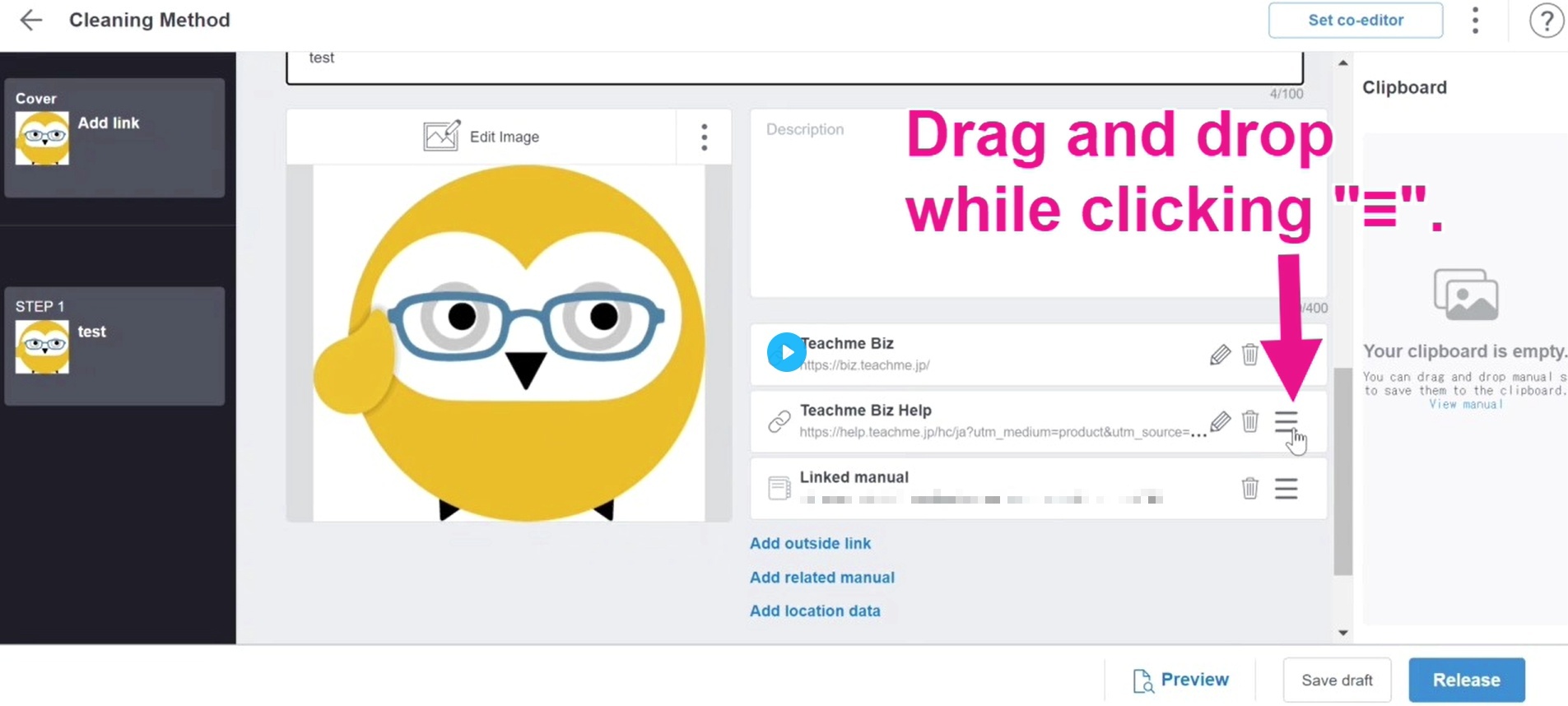
Click and drag the "≡" icon to reorder links.
Related: Add link to manual (Web Browser)
https://teachme.jp/8/manuals/8733762
Add a Link to a Specific Step in the Manual "Description"
You can add a link to a specific step by specifying the step number in the manual's "Description."
This is useful when you want to direct viewers to a specific step within the same manual, such as when a procedure branches.
- Please note that if step numbers change due to manual edits, the link will not automatically update; clicking it will jump to the step with the corresponding number at the time of clicking.
Related: Put a link to the steps in the description (Web Browser)
https://teachme.jp/8/manuals/24160977
Get a link that always jumps to the same step even after editing
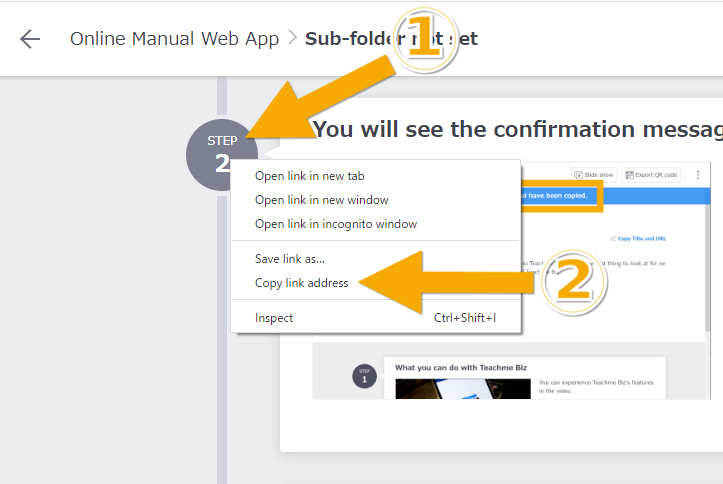
You can right-click on a step number in the manual viewing screen to get a URL that jumps to a specific step.
When you want to direct people to a specific step in a different manual, it is convenient to register it under "Add External Link".
※ URLs ending in "step" that were previously provided may jump to a different destination depending on manual edits.
Related: Copy URL to jump to a specific step of the manual (Web Browser)
https://teachme.jp/8/manuals/8557937
Overall
Revert to published content
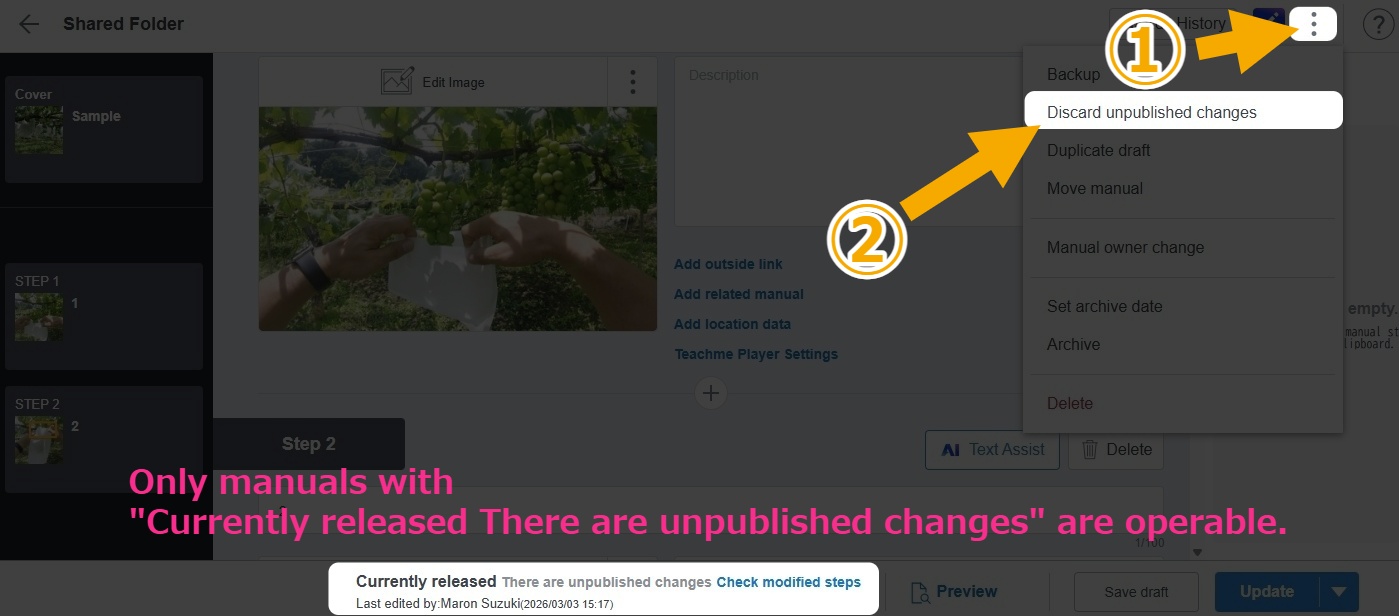
You can undo all edits made after "Publishing" or "Updating".
Related: Discard unpublished changes to the Manuals (Web Browser)
https://teachme.jp/8/manuals/33088474
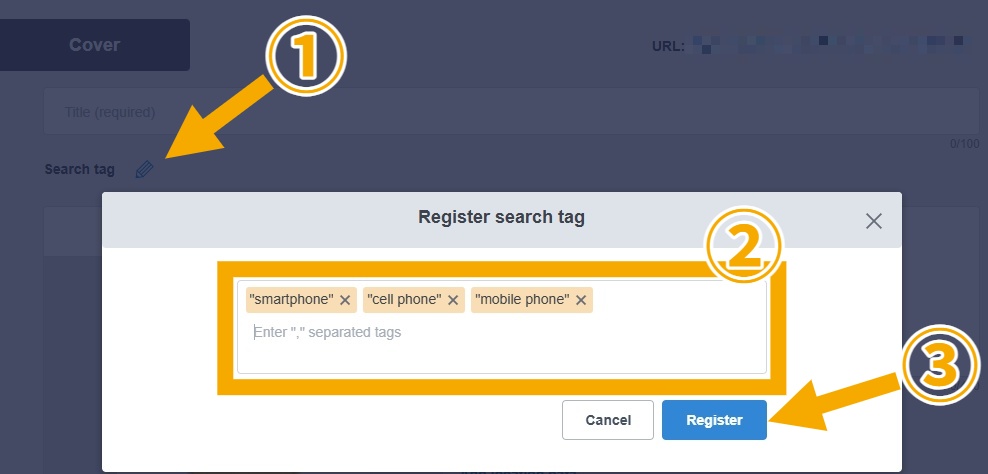
Add search keywords
By adding "Search Tags", you can make content searchable by keywords not included in the title or description.
This is useful when there are common nicknames not written in the manual, or to handle variations in how people spell a word when searching.
Example: Add "Smartphone", "Smart Phone", "Cell Phone", "Mobile Phone" to the "How to use a smartphone" manual
Related:
Set search tags (Web browser)
https://teachme.jp/8/manuals/34274200
What are the benefits of setting "Search Tags"?
https://help.teachme.jp/hc/en-us/articles/900005507786